To move your studio to a new computer, back everything up first, then reinstall rather than copy. Install the audio interface drivers, install your DAW, reinstall the plug-ins and sample libraries, reactivate your licences, and relink audio in a few test projects before you wipe or sell the old machine. The honest part: copying an installed program folder across rarely works, because paths, registrations and activations stay behind.
A weekend is a realistic budget. An hour of backing up, a couple of hours installing software, then the slow part: waiting on library downloads and relinking media in old sessions.
Table of Contents
- What You Need
- Step-by-Step: How to Move Your Studio to a New Computer
- 1. Back Up Everything Before Moving
- 2. Inventory Your DAW, Plug-ins, and Libraries
- 3. Transfer Projects and Audio Files
- 4. Install the DAW and Compatible Plug-ins
- 5. Restore Presets, Templates, and Settings
- 6. Rescan Libraries and Relink Missing Files
- 7. Test Projects Before You Need Them
- Common Mistakes
- Frequently Asked Questions
- Can I move my DAW studio to a new computer without losing presets or samples?
- Should I use an external hard drive to move my studio files?
- Do I need to reinstall VST plugins when moving to a new computer?
- How long does it take to move an electronic music studio?
- What should I do if my DAW cannot find missing samples or plugins?
- Can I move a studio from Windows to Mac or from Mac to Windows?
- Conclusion
What You Need
Gather these before you start, because the move stalls the moment something is missing and you have to shut everything down to find it.
- The old computer that still holds your projects, libraries, plug-ins and licences.
- External storage with enough free capacity for your projects, audio and libraries, plus about 20% headroom. A single folder copied off a failing drive should not be your only copy.
- A second backup target, ideally a different drive in a different place. Forum users doing this well keep two layers: the full working project and a stripped safety copy containing audio and MIDI only, with notes on which instrument each track used.
- Your account logins for every plug-in vendor and sample library, plus serial numbers. If you cannot log in, you cannot reinstall.
- A written inventory of DAW version, operating system, plug-ins, sample libraries, soundfonts and MIDI controllers. Screenshot this before the old machine is formatted.
- Cables for the interface, controllers and external drives, plus a spare set if the new machine uses different ports.
- A migration checklist so you can stop mid-way and pick up where you left off.
Step-by-Step: How to Move Your Studio to a New Computer
1. Back Up Everything Before Moving
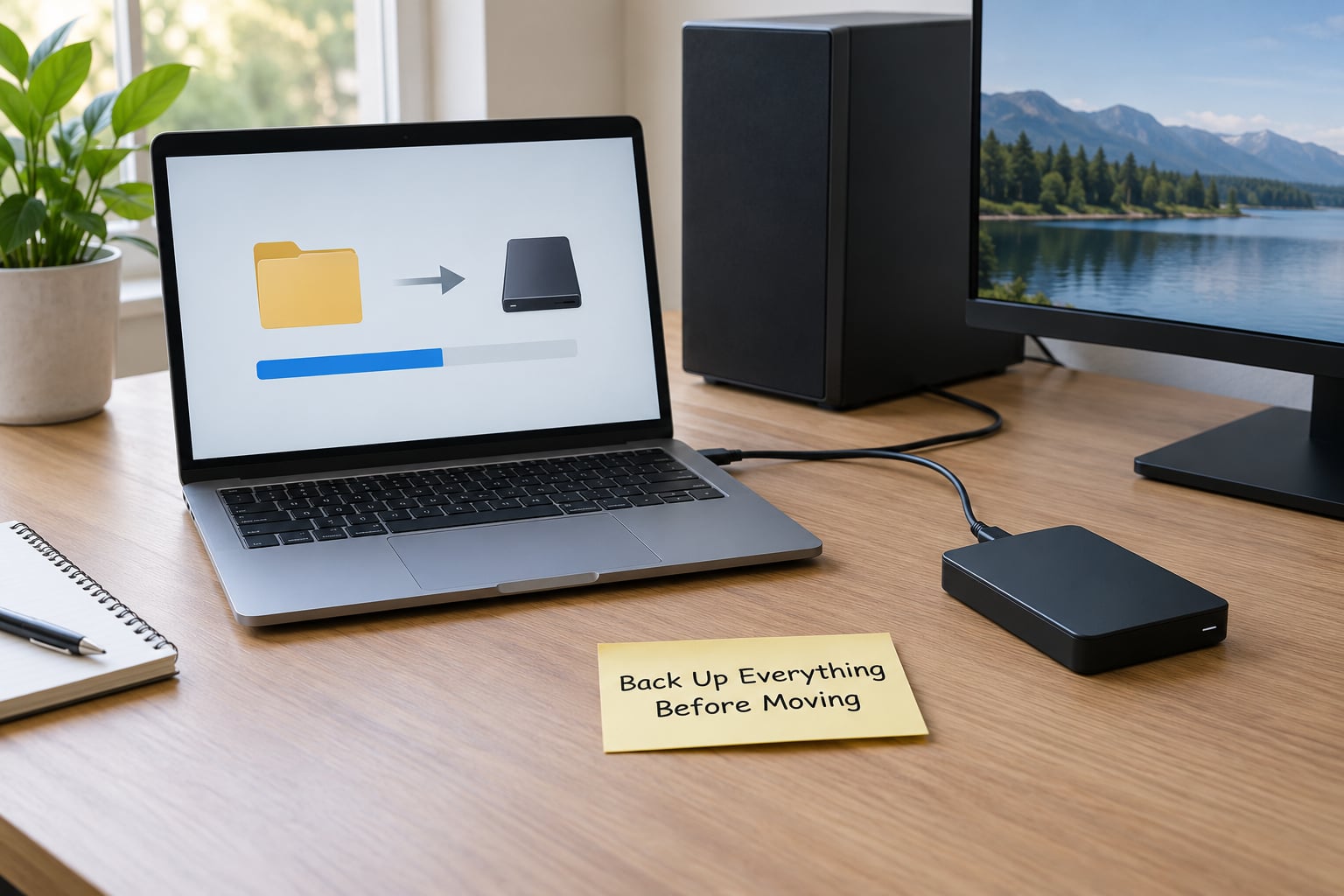
Back up before you change anything, including before you install a single plug-in on the new machine. The backup is the only point in this process where losing files is unrecoverable, and everything after it is fixable.
Copy these four things, not just your projects:
- Project folders with all linked audio, and rendered bounces or prints you still care about.
- Sample libraries and content packs in full, including expansion content that the library’s own installer would otherwise re-download.
- Presets: plug-in presets, MIDI patches inside synths such as Serum, Kontakt instruments saved as multis, templates and channel strip settings.
- Configuration: DAW preferences, MIDI maps, controller profiles, colour codes, and hardware synth patches exported to disk.
How do you know it worked? Open three or four copied project files from the external drive on the old computer and confirm they still play. Backups that silently fail are usually the ones you never opened.
If the drive has more than a terabyte of libraries, a second copy somewhere else is worth the time. The musicplayer.com migration discussion is blunt about it: back up the project as it is, and back up the project with audio and MIDI only plus notes of what instrument is used. That second version survives the plug-in you cannot reinstall.
2. Inventory Your DAW, Plug-ins, and Libraries
Write down what you own before you move it. Producer forums answer most of the same question, what else am I forgetting, and the answer is always the same: MIDI patches, templates, exported plug-in settings and licence details.
Keep a simple spreadsheet with one row per product: name, vendor, version, serial or licence file, format, and download page. Add the DAW version and your operating system version at the top of it. This sheet is the difference between a two-hour move and a two-day one.
| Layer | Typical location on macOS | Typical location on Windows |
|---|---|---|
| DAW settings and preferences | ~/Library/Preferences, ~/Library/Application Support | AppDataRoaming, AppDataLocal |
| Plug-in formats | ~/Library/Audio/Plug-Ins/VST3, Components (AU) | Program FilesCommon FilesVST3, Program FilesVSTPlugins |
| Presets and templates | ~/Library/Audio/Presets, ~/Library/Application Support | ProgramData, AppDataRoaming, Documents |
| Projects and audio | Wherever you save them, usually ~/Music or ~/Documents | Usually Documents or a dedicated drive |
| Sample libraries | /Library/Audio/Sounds, or a chosen drive | C:Sample Libraries, or a chosen drive |
These are defaults, not gospel. Every DAW stores its settings somewhere slightly different, and plenty of people have already moved theirs. Show hidden folders with Cmd-Shift-Period on a Mac or enable Hidden items in Windows Explorer, then look before you assume.
Ableton Live keeps its preferences in the Ableton folder under Preferences on a Mac and under AppDataRoaming on Windows. FL Studio keeps its data, presets, user presets and automatic backups inside the Image-Line folder under your Documents directory. Studio One puts presets in an Application SupportPreSonusStudio One folder on a Mac and the equivalent AppDataRoaming path on Windows. Reaper keeps reaper.ini alongside its media and plug-in folders. Confirm each on your own machine rather than trusting a table, including this one.
3. Transfer Projects and Audio Files
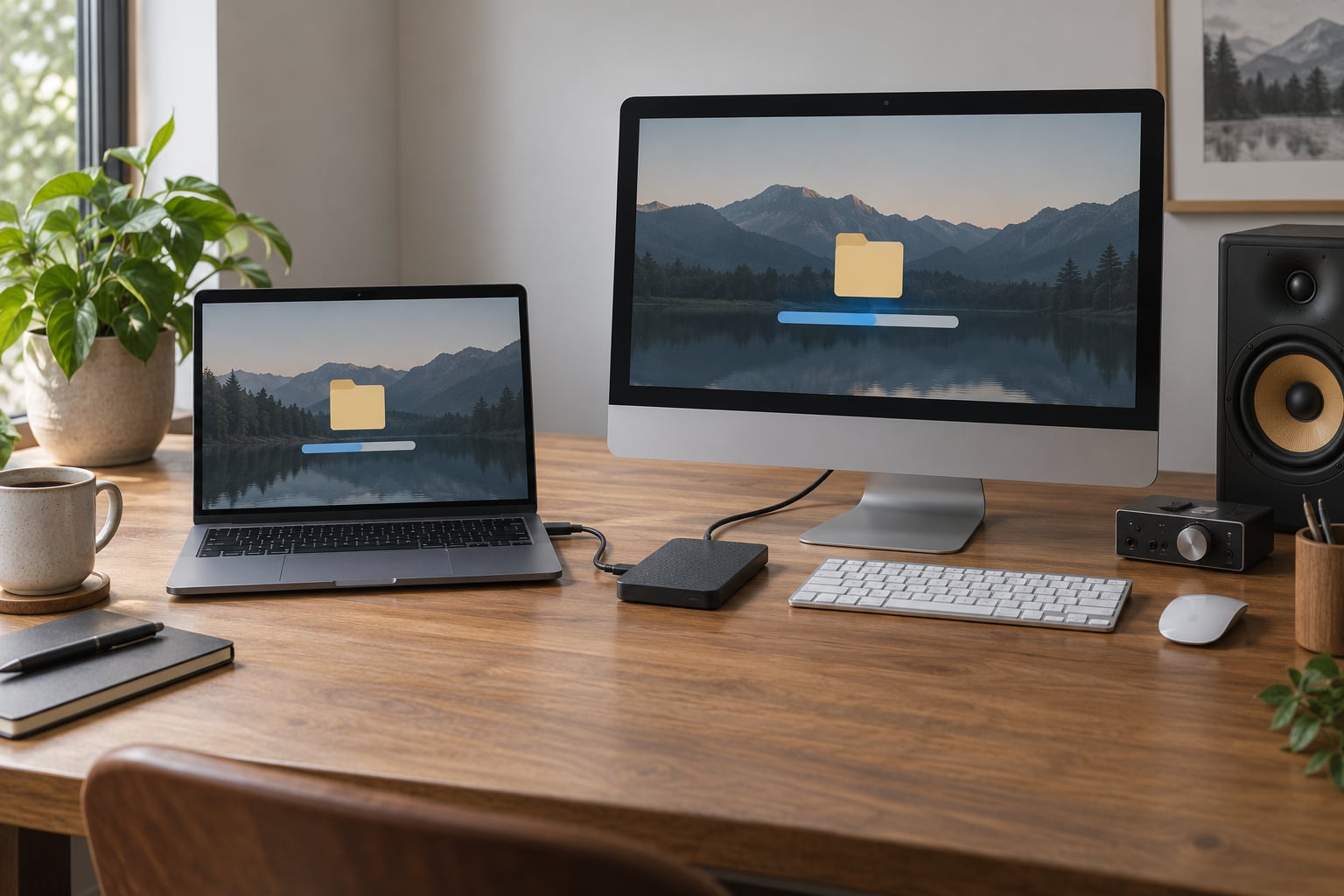
Copy files, not program folders. Drag your projects, audio and libraries across in one clean copy so folder structure and names stay identical. Interruptions and partial copies are what produce sessions that open with missing media halfway through.
Decide per library whether to move the files or re-download them. There is a real trade-off here, and neither answer is dogmatic.
| Approach | Good for | The catch |
|---|---|---|
| Move the library files | Very large libraries, slow connections, paid content you already own | Version drift: an old library build can conflict with a newer plug-in, and content sometimes duplicates across machines |
| Re-download from the vendor installer | Libraries with frequent updates, subscription content, anything giving you trouble | Bandwidth. Plan it on wired Ethernet, not Wi-Fi, and start early |
| Mixed, per library | Most real studios | Takes judgement: check which libraries you actually own first |
For anything huge, a direct network copy or a two-drive approach beats shuttling one disk back and forth. If you rely on a NAS, keep in mind that library access over the network is fine for most instruments and painful for heavy streaming during mixing.
Once copied, compare file counts or total size between source and destination. That single check catches the majority of botched transfers.
4. Install the DAW and Compatible Plug-ins
Do not copy an installed program from one computer to another. Windows plug-ins are registered in the registry and Mac plug-ins carry their own code signing and permissions, so a copied install folder usually shows up as offline or missing. Install fresh instead. This is the step most guides get wrong and the one that produces the forum horror stories.
Install in this order:
- Operating system updates that the machine shipped with, then hold off on further OS updates until the studio is working.
- Audio interface drivers, installed from the interface vendor rather than the operating system.
- The DAW, on the version you were using, not automatically the newest one.
- Plug-ins in the format your DAW reads: VST3 or AAX on Windows, AU or VST3 on Mac. Check Apple Silicon versus Intel compatibility before you download, and give an Intel-only plug-in the Rosetta translation when a Mac asks.
- Software instruments and samplers, with their content installed through the vendor’s own manager.
On first launch the DAW will scan and validate plug-ins, which can take several minutes on a big collection. Let it finish before judging anything. How do you know it worked? Your interface shows correct input and output meters in the DAW’s audio settings at the same buffer size you used before.
5. Restore Presets, Templates, and Settings
Now put your working environment back. Copying a preferences folder over a fresh one is the risky part of this whole process, because a mismatched preferences file can leave the DAW unstable or invisible in the system folder.
The safer order: open the DAW on the new machine first so it writes its own current preferences, close it, then copy your presets and templates in. Keep custom templates, channel strip settings, window layouts and colour codes separate from the raw preferences file so you can roll back.
Re-import MIDI mappings and controller profiles rather than copying them blindly. Plug-ins that ship with the DAW change format between versions, and a broken mapping file is easier to rebuild than to diagnose.
Save MIDI patches properly as you go through old projects too: Kontakt instruments as multis, Serum presets as files, hardware synth patches exported to the drive. Patches living only inside a plug-in’s internal storage are the single most commonly lost item in these moves.
6. Rescan Libraries and Relink Missing Files
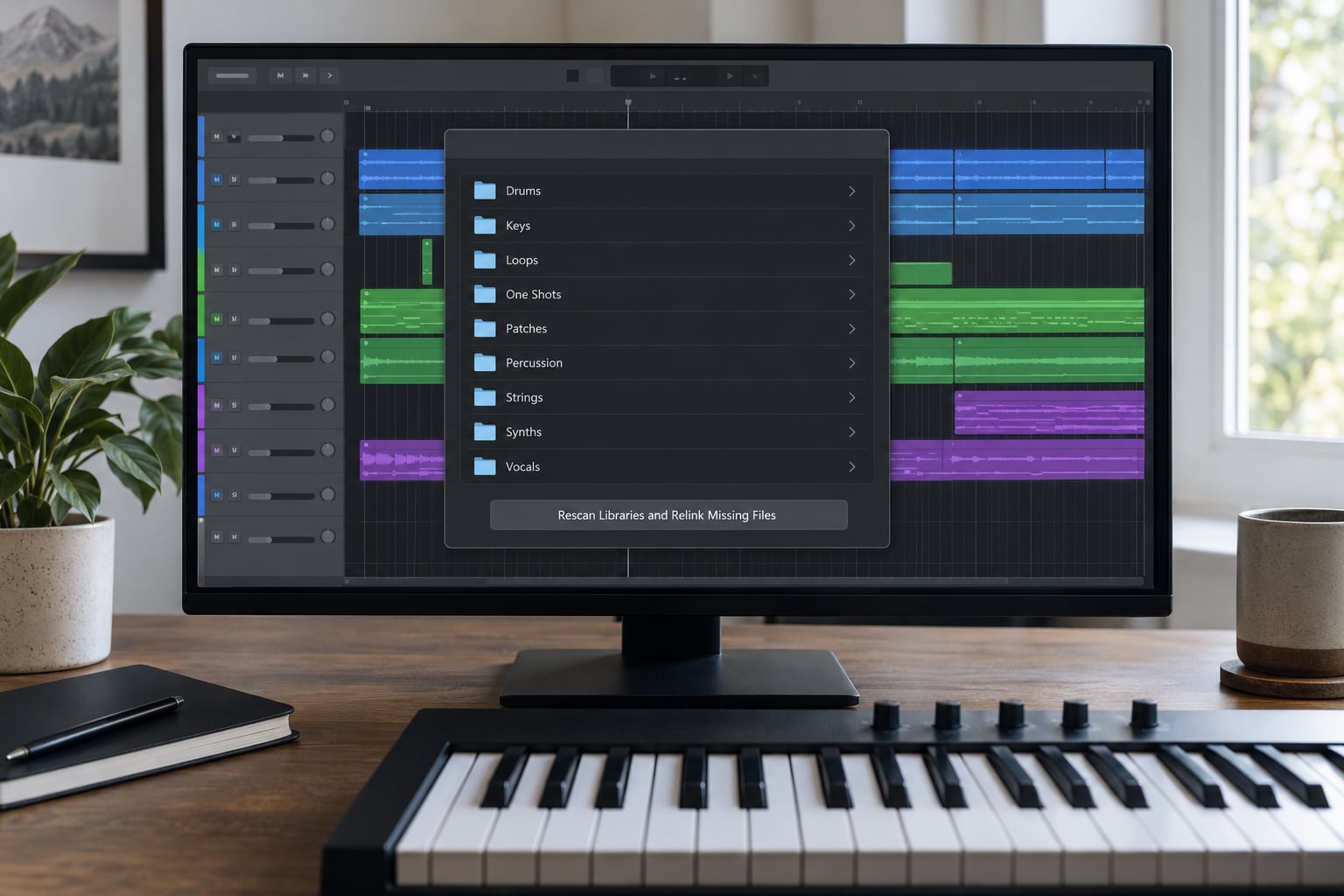
Point the new machine at your library locations before you open a big session. Each sampler and each library manager has its own path setting, and forgetting one is why instruments show as Offline or return no sound.
Set sample paths in the DAW itself, then rescan its plug-in list. After that, open each library manager in turn and confirm it sees its content at the new location.
Then relink audio inside your projects:
- Ableton Live, Logic Pro, Cubase and Reaper can search for missing files and remap a whole session.
- Pro Tools has Locate Missing Files and a workspace-based relink.
- Studio One’s Asset Manager can find and relink missing media across the project.
- FL Studio users generally use Save As and point at the new audio location, or consolidate copied audio before the move.
If the DAW cannot find the audio, do not copy files into the original project folder hoping it guesses. Use the relink or locate tool, and keep the folder structure identical to the original.
7. Test Projects Before You Need Them
Open several old projects and play them. Not one, several: a recent one, an old one with heavy plug-in use, and one you have already rendered from. Ten minutes here saves a deadline later.
Check that instruments load and play, effects appear on inserts with their presets intact, automation still runs, and your controller faders and knobs move the right parameters. Bounce or render a short section to confirm playback stability and that output levels match the old machine.
Then do one genuinely useful thing: open the project you actually care about and finish a piece of work on it. A successful render on a test project does not prove your heavy project is fine.
Only once that passes should you deauthorise and wipe the old machine.
Common Mistakes
These are the failures that show up again and again on producer forums, with the fix for each.
Copying installed programs instead of reinstalling them. Plug-in folders carry no usable registration on either platform, so you get missing or offline plug-ins. Fix: install everything fresh through the vendor installer.
Copying projects without their audio. The project file opens fine and then plays silence. Fix: copy project folders and audio together, keeping the structure identical, and open several copied projects to verify before moving on.
Forgetting plug-in formats and compatibility. An AU plug-in does not run on Windows, an AAX plug-in will not load in Cubase, and an Intel-only plug-in may not run natively on Apple Silicon. Fix: check the format list and the platform support on each product page before you download anything.
Ignoring licences until the end. Vendor accounts limit the number of authorised machines, so a new machine can be refused because the old one still holds an activation. Fix: deactivate on the old computer first, then activate on the new one. Native Access, iLok-based products and subscription DAWs each have their own process, so check your account page before the move rather than after.
Overlooking permissions and file ownership. Copied files arrive read-only, or the new user account lacks access to a library drive. Fix: check the permissions on the sample drive and on the project folder once copied, before blaming the DAW.
Not having a real backup. The external drive was one copy of the only copy. Fix: two copies, one of them off the machine. This is the one mistake that is not reversible.
Testing too lightly. One project opened fine, so the old machine was sold. Fix: test a recent project, an old plug-in-heavy project, a render, and your controller mappings before you deauthorise anything.
Updating everything at once. Operating system, DAW and plug-ins updated on the same afternoon is how an audio interface stops working and you have no idea which change caused it. Fix: drivers first, then DAW, then plug-ins, and leave the OS alone until the studio is stable. Timing matters here: never do any of this while you have client sessions booked.
Frequently Asked Questions
Can I move my DAW studio to a new computer without losing presets or samples?
Yes, as long as you copy the files and reinstall the software. Presets, templates, MIDI patches, projects, audio and sample libraries are all just files and move by copy. What does not move is the installed program itself, the plug-in registrations and the licence activation, which is why you reinstall software and reauthorise licences on the new machine.
Should I use an external hard drive to move my studio files?
Yes, an external SSD or hard drive is the normal way to move a studio, since it avoids transferring terabytes over your network. Format it as exFAT if both a Mac and a Windows machine will read it, give yourself roughly 20% free capacity, and copy projects, audio, libraries and presets in one clean pass. Keep a second copy somewhere else rather than trusting the drive you are shuttling.
Do I need to reinstall VST plugins when moving to a new computer?
Yes. Copying a plug-in folder rarely works because Windows plug-ins rely on registry entries and Mac plug-ins depend on code signing and permissions. Download each installer again, install in the format your DAW reads, and let the DAW rescan and validate on first launch. Installing over a wired Ethernet connection also speeds up large instrument downloads considerably.
How long does it take to move an electronic music studio?
A weekend is a fair estimate. Backing up projects, audio and libraries takes about an hour for a modest setup and much longer for large libraries. Installing the operating system, drivers, DAW and plug-ins takes another half day. The slow part is waiting on sample library downloads and relinking audio in old sessions, so start library downloads first while you work through projects.
What should I do if my DAW cannot find missing samples or plugins?
Check the library path settings in each sampler and library manager first, since libraries usually need their content location set on the new machine. Then rescan your plug-ins. For missing audio inside a project, use your DAW’s relink or locate missing files tool and point it at the folder holding your audio, rather than moving files around inside the project folder by hand.
Can I move a studio from Windows to Mac or from Mac to Windows?
Yes, but expect more work than a like-for-like upgrade. Projects, audio, libraries and MIDI files transfer cleanly. Plug-ins need Mac or Windows builds respectively, some plug-ins have no Mac version or need a Rosetta install, and every licence must be deactivated on the old platform and reauthorised on the new one. Expect several evenings of reinstalling rather than a single evening.
Conclusion
The safe order is the whole answer: back up twice, inventory what you own, copy files rather than programs, install the interface drivers, then the DAW, then the plug-ins and libraries, reactivate your licences, set the library paths, relink audio, and test real projects before you wipe or sell anything.
Do one thing today. Make the backup, keep a second copy off the machine, and write down your DAW version, plug-in list and serial numbers. Nearly every migration problem on these forums comes back to something nobody wrote down before they started.