Knowing how to manage plugin licenses and installers comes down to one habit: know what you own, know where its installer lives, and know which activation slot it is sitting in before you touch anything. Get that record straight and installing, moving to a new computer, or recovering from a dead drive takes an afternoon instead of a week.
The reason people get stuck is that a plugin purchase is really three separate things living in different places. The installer is a file. The license is a key or an account entitlement. The activation is one of a limited number of machine slots the vendor has already handed out. Lose any one of them and the plugin stops opening, even though the paid-for product is sitting in your history.
This guide walks through the whole loop: inventory, archive, protect, install, test, back up, and move. It applies to macOS and Windows, and it works whether you own ten plugins from three vendors or a hundred from twelve.
Table of Contents
- What You Need
- Step-by-Step: How to Manage Plugin Licenses and Installers
- 1. Inventory Your Plugins and Licenses
- 2. Find and Archive the Official Installers
- 3. Protect License Keys and Account Access
- 4. Check Compatibility Before Installing
- 5. Install and Activate the Plugin
- 6. Test the Plugin in a Disposable Project
- 7. Back Up Installers and License Records
- 8. Move Licenses to a New Computer
- Hiding Plugins You Do Not Own
- Common Mistakes
- Maintenance Habits That Prevent Most of This
- Frequently Asked Questions
- Can I reinstall a plugin without the original email or license key?
- How many computers can be activated for one plugin license?
- Should I delete plugin installers after installation?
- Why does a plugin disappear from my DAW after an operating system update?
- Do I need to deactivate plugins before selling my computer?
- Conclusion
What You Need
Before you start, gather the pieces below. Missing any one of them is what turns a two-hour tidy-up into an afternoon of support tickets.
- Your vendor account logins — the email and password you registered with each developer, plus any two-factor method on that account.
- The original purchase email and license key for every plugin you want to reinstall or move. If it is not in your inbox, it is usually in the vendor account portal.
- Your current DAW and operating system details — the exact version numbers matter, because plugin formats and minimum OS builds change.
- Administrator access on the machine. On Windows that means running the installer elevated; on macOS it usually means approving a system extension prompt.
- Enough free storage for the install plus its sample content. Some libraries want 20 GB before you even start.
- A written record of the version you are running now, including whether it is an Intel or Apple Silicon build.
A password manager is worth setting up for this if you do not have one. Half of all license headaches turn out to be a login you cannot reach rather than a license you have lost.
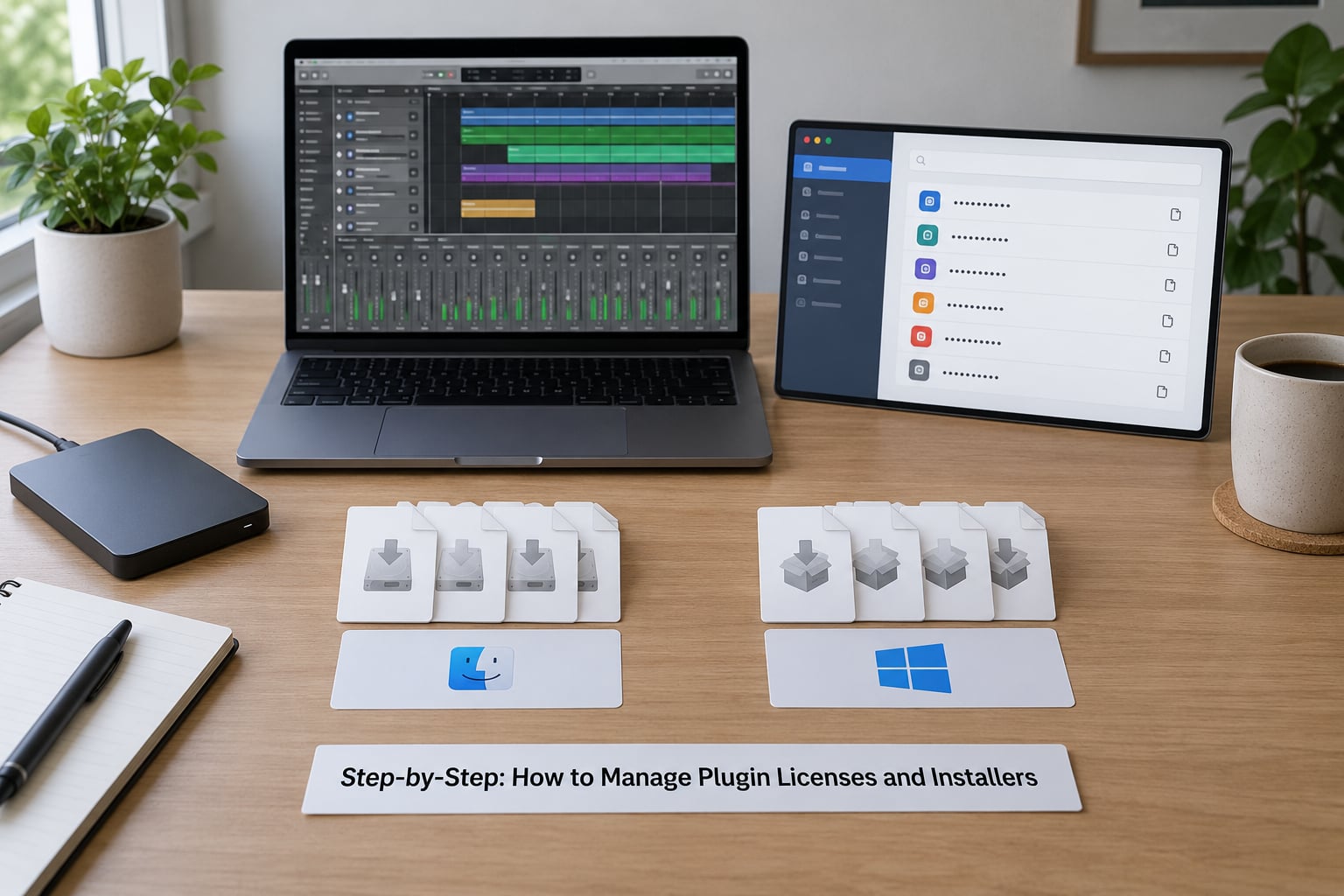
Step-by-Step: How to Manage Plugin Licenses and Installers
1. Inventory Your Plugins and Licenses
Start by writing down, for each plugin, what it is and where its license lives. One row per plugin is plenty.
Capture the plugin name, the developer, the license type (perpetual, subscription, rent-to-own, dongle), where the serial number or product key is stored, which activation slots it occupies, and the format it installed as. Add a column for the installer filename and version.
This table is the thing that saves you later. When a vendor retires a manager or an update breaks a session, the row tells you exactly which key and which download to pull. Without it you are guessing from memory at 1am.
A plugin scanner can list what is installed, but it cannot tell you which activation slot a license is sitting in. That side stays manual, and it has to.
2. Find and Archive the Official Installers
Most installers are downloadable again from the vendor account, but not always from the same place you got them originally. Work through four sources in order:
- The vendor account portal, under downloads or licenses.
- The original confirmation email, including the archive folder it was sent to.
- The vendor support portal, which sometimes hosts older versions.
- Your local Downloads folder, where a surprising number of installers still sit.
Check the build before you run anything. macOS and Windows builds are different files, and on Apple Silicon you need the arm64 or universal build rather than an Intel-only one. Where the vendor publishes code signing, verify the signature before opening the package.
Skip any file that has been renamed or that came from a third-party mirror. If you cannot trace an installer back to the vendor, treat it as disposable and re-download it.
3. Protect License Keys and Account Access
Store every serial number and product key in one encrypted place. A password manager’s secure note is ideal; an encrypted archive on an external drive is the fallback.
Give each vendor a unique password and turn on two-factor authentication everywhere it is offered. Save your recovery codes somewhere other than the phone that generated them.
Know which type you have. A perpetual license usually needs the key itself to reauthorize. A subscription or account-based product mostly just needs you to sign in, because the entitlement sits on the vendor’s servers.
4. Check Compatibility Before Installing
Run the checks before the installer runs. This is where an hour of wasted downloads gets avoided.
Confirm the plugin format your DAW loads — VST3, AU, VST2, AAX or CLAP — and that the vendor ships it. Then check the operating system requirement, the Apple Silicon versus Intel question, the minimum DAW version, and how much CPU the plugin uses, since a plugin that eats your CPU headroom will wreck your session later.
Use the vendor’s current compatibility documentation rather than a forum answer from two years ago. Minima move, and a plugin that ran fine on an older build can be refused outright by a newer one.
5. Install and Activate the Plugin
Run the sequence in a controlled order. Close the DAW first so nothing holds the plugin files open.
- Close every DAW and audio application.
- Run the official installer, elevated on Windows or with the required permission on macOS.
- Follow the vendor’s prompts, choosing only the formats you actually use if you are given the option.
- Sign in to the license manager, or enter the key, and complete activation.
- If the product supports offline activation and your machine is offline, use that path instead.
- Restart the DAW and let it rescan its plugin database.
One warning about installers that offer no format choice and no partial install. Some managers install their entire catalogue whether you own it or not. That is how a DAW ends up with 400 entries and a 90-second startup scan.
6. Test the Plugin in a Disposable Project
Open an empty project, not the session you care about. Then check five things: the plugin appears in the plugin list, a saved project with the plugin loads without an error, the DAW shows an authorised state rather than a trial or expired prompt, audio processes through it, and it survives closing and reopening the DAW.
A trap that catches people out: a preset loading cleanly does not prove the plugin works. Presets often load from cached data even when authorisation has failed. Play audio through the plugin and listen for output.
7. Back Up Installers and License Records
Keep, in one encrypted folder: the original installer file, the release notes for that version, the license receipt, the serial number or product key, and any activation instructions the vendor supplied.
Keep the installer. Vendors do remove older versions from their portals, and a computer can need a specific older build long after it disappears from the download page. The file takes up space; the emergency replacement does not.
8. Move Licenses to a New Computer
Moving is the order-of-operations problem. Do it in this sequence:
- Check the license terms for how many machines it allows and whether deactivation is required.
- Deactivate on the old machine, inside the vendor’s license manager.
- Sign out of the account if the manager holds a session.
- Install on the new machine from the archived installer or the vendor portal.
- Activate there, then verify with the disposable project test.
Systems such as iLok, PACE and account-based managers all handle this differently, and menu names differ between versions. Follow the current documentation for your manager rather than a walkthrough written for a different one.
Hiding Plugins You Do Not Own
If an installer gave you a whole library you only partly own, most DAWs can blacklist the extras so they stop appearing in menus and stop slowing your scan. Right-click the plugin in the plugin list and set it to be hidden, or use the DAW-side manager if one is built in.
This is a display fix, not a licensing fix. It solves a cluttered menu and a slow scan, and it does nothing about authorisation.
Common Mistakes
Each of these has a fix that works. The pattern is the same: check the license record first, then the installer, then the machine.
| Symptom | Likely cause | Fix |
|---|---|---|
| Installer gone, no download on the vendor portal | Older version retired from the downloads page | Use your archived installer copy; contact support for a reissue if it is also lost |
| Too many activations error on a new machine | Old machine still holds a slot | Deactivate on the old machine first, or release the slot from the vendor account page |
| Unauthorised after a hardware or OS change | Machine authorisation no longer matches | Deactivate, reinstall the license manager, reactivate, then rescan the DAW |
| Plugin loads but produces no audio | Wrong CPU architecture build, often Intel-only on Apple Silicon | Install the arm64 or universal build from the vendor |
| Plugin missing from the DAW after install | Format not installed, or the plugin database was not rescanned | Install the correct format, then rescan or validate the plugin list in the DAW |
| Download stalls near completion and never finishes | Corrupt or partial download | Cancel, clear the manager cache, re-download, verify the package signature |
| Session opens with missing third-party plugins | Different plugin versions between machines | Install the exact versions from your inventory before opening the session |
| DAW scan is very slow after an update | Unowned plugins from a whole-library install | Blacklist unowned entries, or remove the extras through the vendor manager |
Maintenance Habits That Prevent Most of This
- Re-run your inventory whenever you buy a plugin, not a year later when it breaks.
- Deactivate before you wipe a drive, and deactivate before you hand a machine to someone else.
- Keep one master installer archive, organised by vendor and by operating system.
- Read release notes before updating a plugin that a finished project depends on.
- Check activation counts in the vendor account whenever you add a machine.
- Save a copy of every session’s plugin list alongside the session itself.
Frequently Asked Questions
Can I reinstall a plugin without the original email or license key?
Usually, yes. Every vendor account portal stores the licenses tied to your email, and most show the serial there and offer a fresh download. The email matters mostly for older or independent developers with no account system. If both the email and the account are gone, contact vendor support with proof of purchase such as a bank statement line. That is slower but it works more often than people expect.
How many computers can be activated for one plugin license?
It depends entirely on the vendor and the license type. Many perpetual plugins allow two activations, usually a main machine and a laptop. Some allow three, some are tied to a single machine, and subscription products generally follow the number of devices your plan covers rather than a fixed activation count. The number is printed in the license terms inside your account, so check there before assuming. Track your used slots in your inventory.
Should I delete plugin installers after installation?
No. Keep them, in one encrypted archive organised by vendor and operating system. Installers are small next to sample libraries, and vendors do retire older versions from their download pages. A machine can need one specific older build years later, usually to open an old session. The one exception is installers from a trial or a temporary giveaway, which can go as soon as you have archived anything permanent.
Why does a plugin disappear from my DAW after an operating system update?
An OS update can change the plugin format folder, the architecture the system reports, or the security rules that block unsigned components. On Apple Silicon a Mac that previously identified as Intel may now surface arm64 paths, and a plugin installed for the wrong one drops out of the list. Rescan the plugin database first, then reinstall the correct arm64 or universal build from your archived installer.
Do I need to deactivate plugins before selling my computer?
Yes, and the order matters. Deactivate each license inside its vendor manager while you still have access, sign out of the vendor account, then wipe the machine. Deactivating releases your activation slot so the next owner or your next machine can use it. Bundled licenses that came with a hardware controller are usually tied to that vendor account, so check whether they transfer at all before you promise anything in the sale.
Conclusion
Start with the inventory. One row per plugin, one spreadsheet, one encrypted folder of installers and keys. That single afternoon of admin removes most of the ways plugin licensing goes wrong, and it makes the next machine migration a checklist instead of a crisis.