Knowing how to label and tag your presets comes down to two habits: writing a short, predictable name for every synth or instrument patch you save, then attaching a small fixed set of tags so you can find that patch again in seconds inside your DAW. This guide is about audio presets in Ableton Live, Logic Pro, FL Studio, Kontakt, Serum and Massive — not physical equipment stickers and not photo presets. It takes about an hour to set up a convention and ten minutes to test it properly.
The truth is that almost nobody has a published system for this. When the r/ableton thread asks how people organize devices and presets, the honest answer in the replies is that most producers are improvising. That is why so many libraries fill up with entries called “New Preset 47” and become useless within a year.
Below you’ll get the naming pattern, the tag vocabulary, the per-DAW mechanics, and a maintenance routine that keeps things consistent as the library grows. If you want the short version, use the naming grammar in the next section and the tag list under step 2, then apply both to ten presets before touching the rest of your library.
Table of Contents
- What You Need to Label and Tag Your Presets
- A tidy source folder that holds every patch
- A written naming convention you can type from memory
- Your DAW and plug-in version numbers
- A decision about which details actually matter
- Before-and-after examples to test the convention against
- Step-by-Step: How to Label and Tag Your Presets
- 1. Define a Consistent Preset Naming System
- 2. Create Clear Categories and Preset Tags
- 3. Add Useful Metadata
- 4. Update Names and Tags Inside Your DAW
- 5. Test the System on a Real Preset
- 6. Maintain Naming and Tagging Over Time
- Common Preset Naming Mistakes (and the Fix)
- Frequently Asked Questions
- What is the difference between a preset name and preset tags?
- How many tags should I add to a synth preset?
- How do I organize presets consistently across different DAWs?
- Can I batch rename presets and update their tags at once?
- How do I fix preset names and tags in an existing library?
- Conclusion
What You Need to Label and Tag Your Presets
Before you rename anything, you need five things in place. Skipping the first one is how libraries get broken, because renaming files out from under an open project can leave a project pointing at patches that no longer exist.
A tidy source folder that holds every patch
Find out where your DAW and plug-ins actually save user patches. Ableton Live keeps its own patches in the User Library folder, Logic keeps Sampler and EXS24 instruments in a patches area inside the Logic sound folder, FL Studio keeps channel and plugin presets in its Data folder, and third-party plug-ins like Kontakt, Serum and Massive each save into their own directories. VST3 plug-ins in particular are the ones that scatter across undocumented system paths and leave you with no in-DAW way to reorganize them.
Consolidate them into one master folder before you start renaming. Keep the master as the canonical copy, and treat any vendor library folders as a separate concern — you don’t want to rename files that a plug-in manages on its own.
A written naming convention you can type from memory
You need a pattern with a fixed slot order. A pattern you have to look up every time is worse than no pattern, because most preset names get typed by hand during a session. Keep the whole name under roughly 30 characters if you can, and skip spaces — hyphens or underscores read fine in a browser list and survive path problems better.
Your DAW and plug-in version numbers
Write down which major version you are on. Live 11 and Live 12 differ in browser behavior, Logic’s Sampler replaced EXS24 in recent versions, and a plug-in update can change a preset format or path. If your convention has a version slot, this is what fills it — the version of the sound design, not the version of the software.
A decision about which details actually matter
Key, tempo, and version travel well across plug-ins. Timbre adjectives like “gritty” or “airy” are yours, and they only help if you use the same handful every time. Deciding this upfront is what keeps names short.
Before-and-after examples to test the convention against
Take three of your worst current names and try them against the pattern:
- “Saw stuff 2” becomes Saw_Pluck_Bright_v2.
- “Doop doop bass” becomes Bass_Seq_Pluck_C2.
- “Copy of Layer 3 FINAL” becomes Layer_Warm_Stack_v3.
If the improved name tells you more than the original at a glance, the pattern works. If it doesn’t, the slots are wrong.
Step-by-Step: How to Label and Tag Your Presets
The workflow below has six steps and takes about an hour for your first pass. Exact menu paths differ between DAWs and plug-ins, so treat the step four specifics as guidance for the software named there rather than universal instructions — a preset system that only exposes a display name cannot do what a Kontakt library can.
1. Define a Consistent Preset Naming System
Build the name in a fixed slot order: instrument or sound type first, then category, then the distinctive variation, then an optional version. That order matters because it sorts sensibly in any browser that sorts alphabetically by name, and because the first slots are the ones you scan. Getting how to label and tag your presets right on paper is most of the work; step 4 covers where each DAW lets you actually edit it.
The four slots, with what each one does:
- Instrument or sound type — Bass, Lead, Pad, Pluck, Seq, Kick, Snare, FX. This is the coarsest sort and belongs first.
- Category — the family: Saw, Supersaw, FM, Granular, Sub, Noise, Arp.
- Distinctive variation — the thing that makes this patch different from its siblings: Pluck, Warm, Hollow, Bright, Dirty.
- Optional version — v2, v3, or a date stamp like 250816.
A worked example: Bass_Seq_Pluck_C-2_v2. Read that out loud to someone and they know the family, the source, the character, the tuning, and which iteration it is. You don’t need the key in every name — add it only when a family has many members in the same register.
Use numbers when they carry meaning, not as filler. A version number earns its place. “Saw2” does not — if you can’t tell 2 from 3 by reading, neither can you.
One more slot worth deciding on: BPM. Tempo-locked or drum-machine patches benefit from it, sustained sounds don’t. Putting BPM in the name of every pad is noise.
2. Create Clear Categories and Preset Tags
Folders, categories, and tags do three different jobs, and mixing them up is why libraries feel disorganized. Folders are physical, limited by your operating system, and painful to restructure. Categories are the plug-in’s or DAW’s own grouping. Tags are short keyword labels attached to a patch, and they’re what you actually search on. That split is what lets how to label and tag your presets scale: the name is universal, the tags are a bonus where the format supports them.
Build a small controlled vocabulary first. Six dimensions is plenty:
- Genre — trance, house, techno, ambient, halftime
- Mood — uplifting, dark, melancholic, aggressive, dreamy
- Role — arpeggio, chord, riser, stab, texture, sub, transition
- Texture or character — supersaw, gritty, glassy, hollow, metallic
- Energy — low, mid, high
- Instrument — saw, fm, granular, wavetable
Write that list down and keep it to about 20 tags total. Three to five tags per preset is the useful range. More than that and your filter returns everything.
One tag per concept, one word per tag, always lowercase. If you have both “supersaw” and “SuperSaw” and “super saw” in your list, half your patches are unfindable. The same applies to synonyms — pick “pluck” over “stabby” and stick with it. Generic tags like “good” or “cool” tell you nothing a name can’t tell you better.
3. Add Useful Metadata
Where the format supports it, populate the fields that a name can’t hold: author, description, creation date, version, source plug-in, related pack, and intended use.
Description is the most useful of these because it’s searchable in plug-ins that index it. Two sentences is plenty: what the patch is, and where you’d reach for it. “Warm detuned saw stack, sits under a vocal in the second verse. Built for the ambient track and reused on the house project.” That kind of note saves you re-listening thirty seconds of audio to remember why you kept it.
Author and version matter more than most people think. If you and a collaborator both edit a preset, the author field is how you know whose version you are loading. Creation date helps when you’re auditioning from a folder of near-identical variations and need to know whether the one you loved is the newest.
Be realistic about support here. Some synths expose a display name and nothing else. Some expose name plus description. Kontakt libraries carry far richer metadata because they are built as libraries. EXS24 and Logic Sampler patches carry a name and a description but limited tag support. Where a format won’t hold the metadata, put it in the filename instead and stop fighting the tool.
4. Update Names and Tags Inside Your DAW
This is where DAWs genuinely differ, and it’s the part beginners get wrong most often.
Ableton Live. Save patches to the User Library so they show up in the browser, on Push, and on connected MIDI controllers. Right-click a preset in the browser to rename it, and use the tag field in the browser’s info view to attach keywords. Live’s browser also supports color coding, which is useful as a fast visual layer on top of a name that already works — color on its own is not organization.
Logic Pro. Sampler and EXS24 instruments keep their patches in a patches folder inside the Logic sound folder. Open the patch in the inspector to rename it and edit its description. Logic’s Smart Tempo and track-level tagging live elsewhere, so don’t expect a synth preset to carry your track metadata.
FL Studio. Channel presets and plug-in presets save through the plug-in’s own interface into FL’s Data folder. Most third-party plug-ins here expose only a name field in their preset menu, which is exactly why the naming convention has to do the heavy lifting.
Kontakt. Presets live inside the library folder and support the richest metadata of anything on this list. If you want demonstration presets with full descriptions and tags, Kontakt is where to see what a well-tagged library looks like.
Serum and Massive. Both save to a preset folder on disk and both let you rename from the preset menu. Neither has a real tag field, so all your filtering happens on the filename.
One warning worth internalizing: MIDI mappings usually live in the Set, not the preset. Ableton deletes controller mappings of macro assignments when it loads a saved rack, which is exactly why some producers store everything in Sets instead of the User Library. If you share presets with someone, tell them what the patch expects to be mapped, or send the Set.
5. Test the System on a Real Preset
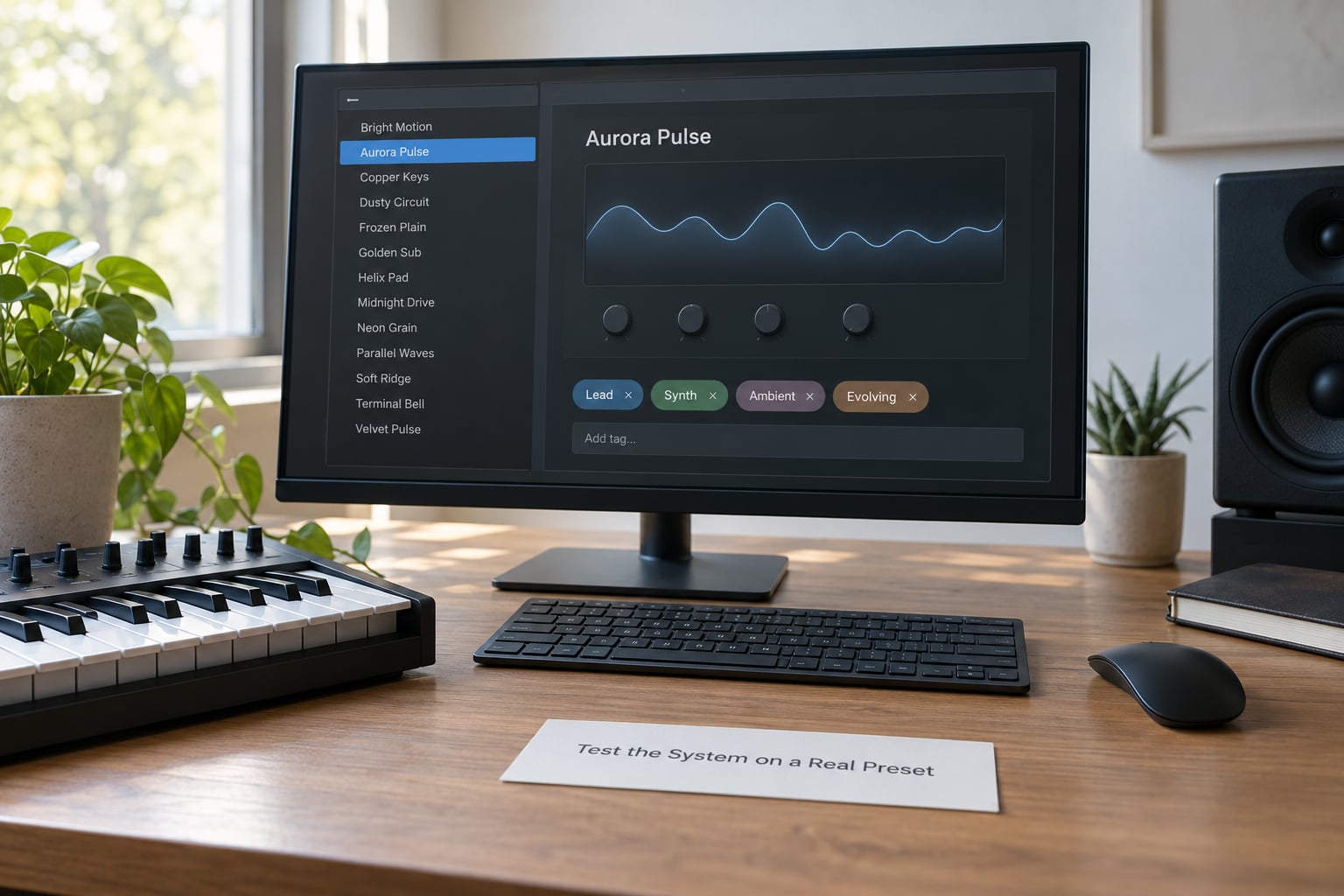
Build one preset from scratch using the full system — a trance or house lead works well, since it forces you to fill every slot. Name it Lead_Arp_Bright_C-3_128_v1, give it the tags arpeggio, uplifting, supersaw, high, and write a two-sentence description naming the plug-in it came from.
Then test it five ways:
- Search test. Find it by typing one tag. It should come back, and so should only patches that genuinely match.
- Sort test. Sort the folder alphabetically. Presets of the same family should sit together.
- Blind test. Close everything and read only the name. Ask yourself whether you’d expect this sound. If not, the variation slot is vague — “Bright” and “Warm” only work if you use them consistently.
- Rename test. Change the name, save, and reopen. Confirm the browser shows the new name and that the tag survived.
- Export test. Export or copy the preset to a shared folder, open it on a different machine or in a different DAW, and check that the name and tags travel.
If the blind test fails, fix the name before you ever audition the patch. A name that doesn’t predict the sound is a name you’ll re-listen to forever — one commenter put it plainly when describing why they label presets: if they’re labeled properly, they roughly know what to expect without loading them.
6. Maintain Naming and Tagging Over Time
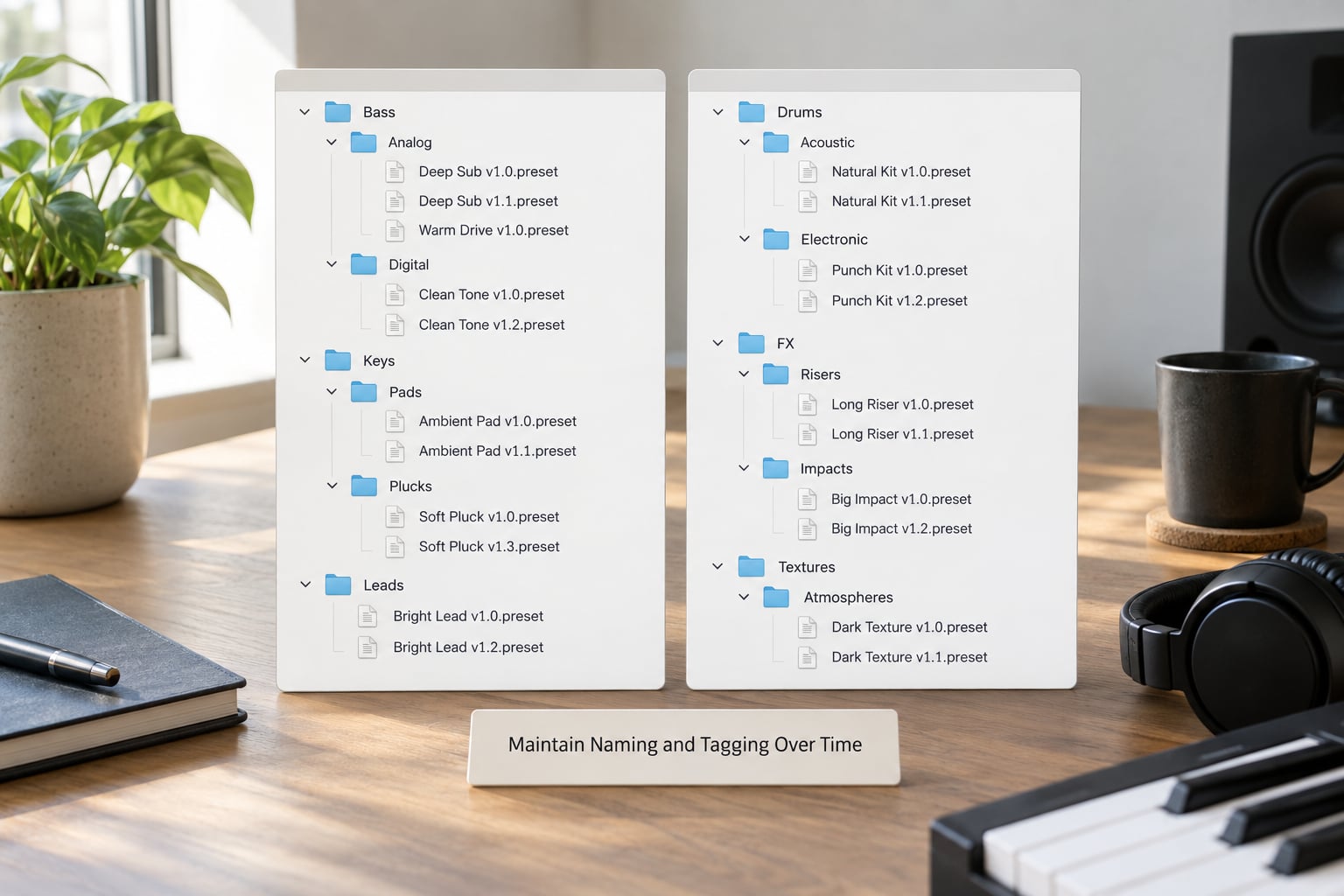
A convention decays without a routine. Four habits keep it alive:
- Version, never overwrite. When a patch changes meaningfully, save v2 and leave v1 alone. You’ll want the old one for an older project.
- Keep a change log. A plain text file per project, one line per patch, with what you changed and why. Six months later this is the difference between a tweak and a guess.
- Sweep for duplicates monthly. Search for “copy”, “final”, “final2”, and “New Preset” in your folder names. Delete or rename what you find.
- Cap your tag list. When you want a new tag, ask whether it replaces an existing one. A 20-tag vocabulary beats a 200-tag one every time.
Teams need one written page with the pattern, the tag list, and two real examples. New collaborators read it once instead of asking on a forum thread where nobody has a canonical answer anyway.
Common Preset Naming Mistakes (and the Fix)
These are the ones I see over and over, each with a quick correction:
- Vague names. “Saw stuff 2” tells you nothing. Fix: fill the variation slot with a word you actually use — Pluck, Warm, Hollow.
- Excessive punctuation. “Bass!!! Saw – FINAL v2 (new)” is unreadable in a narrow browser column. Fix: underscore separators, nothing decorative.
- Inconsistent capitalization. “Bass_Pluck” next to “bass pluck” breaks sorting. Fix: one style, capitals or lowercase, applied everywhere. Pick lowercase if you plan to search by typing.
- Characters that break on other systems. Avoid / : * ? ” < > | and don’t end a name with a space or period. Windows rejects the first ten outright, and forward and backslashes create phantom folders in paths. Stick to letters, numbers, hyphens, underscores, and spaces.
- Duplicate and synonym tags. “Saw”, “sawtooth”, and “Saw Lead” for the same idea. Fix: one word per concept, and never put a category in both the name and the tag unless the tag is your search handle.
- Genre-only labels. If everything is tagged “trance”, the tag returns 300 results. Fix: genre plus role plus energy, so the filter narrows.
- Renaming without updating exports and projects. You rename a preset, export a pack, and now the folder copy and the working copy disagree. Fix: rename in the master folder, then re-export.
- Relying on color or icons. Color coding reads well in Live’s browser and means nothing anywhere else. Fix: color as a layer on top of a good name, never instead of one.
- Expecting everything to live in the preset. MIDI mappings and some macro assignments belong to the Set. Fix: write what the patch expects into the description field.
Two habits to keep: name it at save time, not later. A preset saved with a placeholder name is a preset you’ll never rename. And keep your master library backed up outside the drive your DAW reads from — people lose whole libraries to reinstalls and drive failures, and a Time Machine restore has been known to drop linked samples out of saved racks.
Frequently Asked Questions
What is the difference between a preset name and preset tags?
A preset name is a single label you read in a browser list, built from fixed slots like instrument, category, variation and version. Preset tags are short keyword labels attached to the patch for filtering, covering mood, role, energy and texture. The name tells you what one patch is; the tags let you find a whole family of patches at once.
How many tags should I add to a synth preset?
Three to five tags per preset is the practical range. Keep a controlled list of around twenty words covering genre, mood, role, texture, energy and instrument type. More tags than that and your filter stops narrowing anything, and duplicate spellings of the same concept split results in half.
How do I organize presets consistently across different DAWs?
Put the whole system in the filename, because filenames are the only thing every DAW and plug-in reads. Ableton Live, Logic Pro, FL Studio, Kontakt, Serum and Massive all save presets as files on disk, so one naming pattern works everywhere even when their browsers differ. Use tags as a bonus where the plug-in supports them.
Can I batch rename presets and update their tags at once?
Batch renaming files is straightforward with your operating system’s file tools, working on a copy of the library with the project closed. Updating tags in bulk depends on the plug-in: formats with an editable tag field can be scripted or handled by the plug-in’s own browser, while Serum, Massive and most FL Studio plug-ins expose only a name field, so the filename is your only option.
How do I fix preset names and tags in an existing library?
Do it in batches, never all at once. Sort the library, pick one family, apply the naming pattern and tag vocabulary to it, then check that open projects still resolve. Work on a copy of the folder with the DAW closed so nothing breaks mid-rename. Expect about fifteen minutes per hundred presets for a library of a few thousand.
Conclusion
How to label and tag your presets comes down to three things: a naming pattern with fixed slots, a short tag vocabulary you never stray from, and a folder structure that mirrors them. Everything else — color coding, folders inside folders, clever hierarchies — is decoration on top of those.
Start with the smallest possible job. Pick one pattern, write down twenty tags, and apply both to ten presets you’ve already finished with. Search for them by tag, sort them by name, and see whether the names still make sense without loading anything. If they do, the rest of your library is just repetition.